

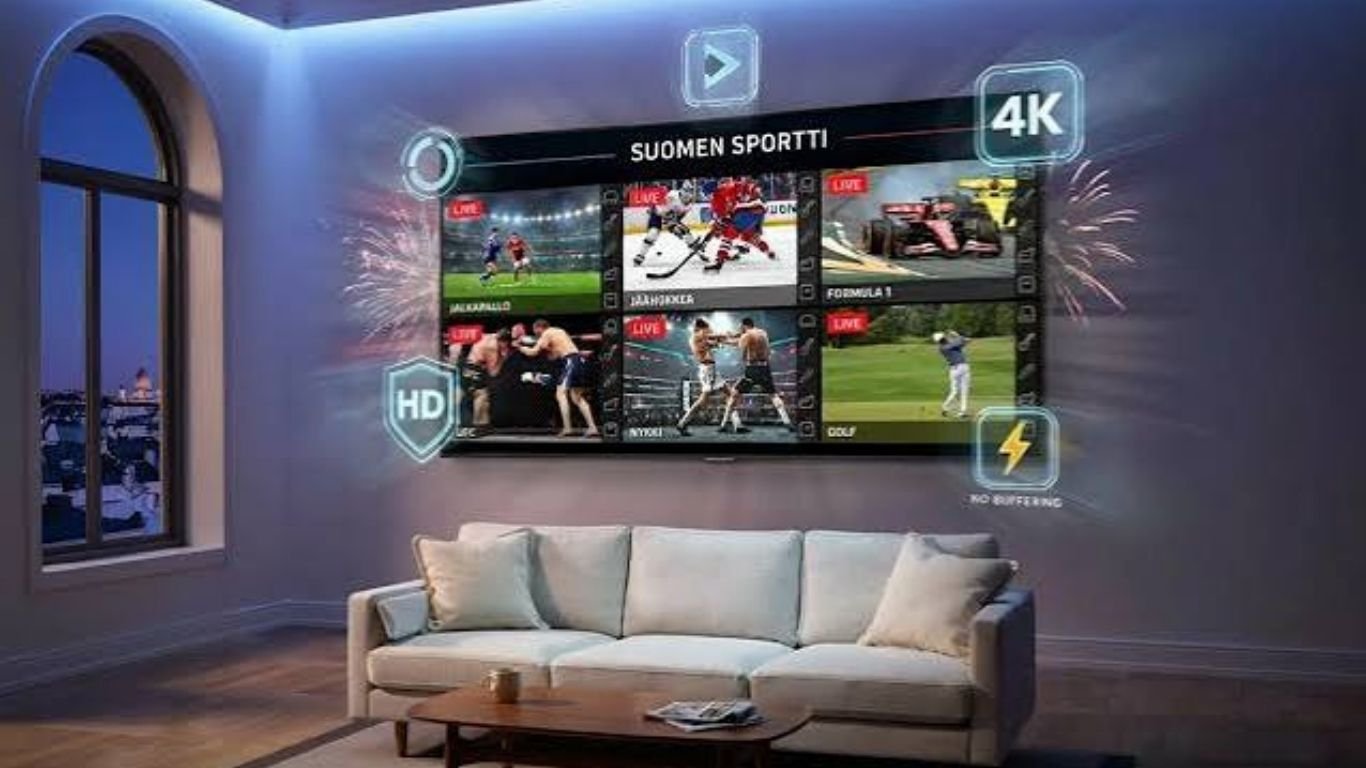
IPTV Player for Apple TV: Complete Guide to Choosing and Using One
IPTV Player for Apple TV: Complete Guide
An IPTV player for Apple TV is an app designed to play television channels and other video streams from playlists or compatible sources supplied by the user. Apple TV can install apps through the App Store, allowing users to use compatible IPTV players without changing the device’s operating system.
The quality of the experience depends on several factors, including the IPTV player’s tvOS compatibility, playlist format, electronic program guide support, network connection, video format, and Apple TV hardware.
This guide explains what to look for in an IPTV player for Apple TV, how to install it, and how to troubleshoot common playback problems.
What Is an IPTV Player?
An IPTV player is software that organizes and plays television streams delivered over an internet connection. Unlike a traditional television receiver, an IPTV player generally does not create or supply the television channels itself.
Instead, the player acts as the interface between the Apple TV and compatible streaming information supplied by the user.
Depending on the application, a player may support features such as:
- M3U or M3U8 playlists
- Channel categories
- Favorites
- Search
- Electronic program guides (EPG)
- Live-stream playback
- Multiple playlists
- Channel logos
- Parental controls
- Recently watched channels
- Siri Remote navigation
The exact features vary between applications, so checking the app’s current App Store description is important before installing it.
Does IPTV Work on Apple TV?
Yes. IPTV can work on compatible Apple TV models when an appropriate tvOS application is available.
Apple states that Apple TV 4K and Apple TV HD can download apps and games from the App Store. Apple TV 3rd generation does not have access to the App Store for downloading new applications.
This makes the Apple TV model an important consideration. If you are using an older device, first check whether it supports the app you want to use.
Apple TV 4K also provides modern connectivity and hardware capabilities. Apple’s current technical specifications list Wi-Fi 6, HDMI 2.1, Bluetooth 5.0, and an A15 Bionic chip for the current Apple TV 4K configuration.
Why Use an IPTV Player on Apple TV?
Apple TV is designed around a television-friendly interface, which can make navigating video applications comfortable from the sofa.
A dedicated IPTV player can also provide features that are useful for live television, including channel organization, search, favorites, and an electronic program guide.
Other potential advantages include:
- Large-screen experience: Content can be viewed directly on a television rather than a phone or computer.
- Simple remote control: A compatible player can be operated using the Siri Remote.
- Dedicated interface: Channels and categories can be organized specifically for television viewing.
- Good connectivity: Current Apple TV 4K models support Wi-Fi 6, while some configurations also provide Gigabit Ethernet.
- 4K and HDR capabilities: Compatible Apple TV hardware and displays can support high-resolution and HDR video formats.
The actual picture quality and stability, however, depend on the stream, network, application, and television setup.
Key Features to Look For in an IPTV Player
Choosing an IPTV player for Apple TV should be based on functionality rather than simply the app’s name or appearance.
M3U and Playlist Support
M3U is a common playlist format used to organize streaming URLs. Some applications may also support M3U8 or other playlist methods.
If you already have a compatible playlist, check the app’s current documentation or App Store description to confirm that it supports the format you need.
Electronic Program Guide
An electronic program guide, commonly called an EPG, displays information about scheduled television programs.
A useful EPG can make a large channel list easier to navigate because you can see program information instead of opening channels one by one.
However, EPG functionality can depend on both the player and the data included with the playlist.
Remote-Friendly Interface
A good IPTV player should be designed for television navigation.
Look for:
- Clear menus
- Large channel listings
- Easy category navigation
- Fast search
- Simple playback controls
- Favorites
- Easy access to the program guide
The app should not require frequent interaction with a phone or computer for ordinary viewing.
Video and Audio Support
Compatibility with common video and audio formats can affect playback quality.
Apple’s current Apple TV 4K specifications include support for formats such as H.264 and HEVC, as well as Dolby Vision, HDR10+, HDR10, and HLG under supported conditions.
That does not mean every IPTV UK Subscription stream will automatically support these features. The stream itself, the player, and the television must all be compatible.
Search and Favorites
A large playlist can become difficult to manage without organization tools.
Search and favorites are particularly useful when you regularly watch a smaller selection of channels from a much larger list.
Privacy and App Information
Before installing an IPTV player, review its App Store listing, developer information, privacy details, ratings, and reviews.
Apple’s App Store interface provides information such as screenshots, ratings and reviews, developer information, age rating, accessibility features, and privacy information for supported apps.
How to Install an IPTV Player on Apple TV
Installing a compatible IPTV player is generally straightforward.
Open the App Store
From the Apple TV Home Screen, open the App Store.
Search for an IPTV Player
Use the search function to look for an IPTV player compatible with Apple TV.
Apple also supports searching for apps with Siri on compatible Apple TV models.
Check the App Details
Before installing, review:
- Supported Apple TV models
- tvOS compatibility
- App features
- Ratings and reviews
- Privacy information
- Purchase requirements
- Available in-app purchases
Select Get or Buy
Choose Get if the app is free or select the displayed purchase option if payment is required.
Apple’s official instructions confirm that apps can be downloaded directly through the App Store on supported Apple TV models.
Open the Application
After installation, open the player and follow its on-screen instructions.
How to Add a Playlist
The exact process varies between IPTV players, but the general workflow is similar.
You may be asked to add information such as:
- An M3U playlist URL
- An M3U/M3U8 file
- A compatible playlist
- EPG information, if supported
Only use playlists and streams that you are legally authorized to access.
After the playlist is added, the application may organize the available channels into categories. Some players also provide search, favorites, channel logos, and program-guide features.
Apple TV Hardware and IPTV Performance
Hardware can influence the overall experience, particularly when using high-resolution video.
The current Apple TV 4K includes an A15 Bionic chip and supports Wi-Fi 6. A Wi-Fi + Ethernet configuration also provides Gigabit Ethernet.
For a home network with strong Wi-Fi coverage, wireless connectivity may be sufficient. Ethernet can be useful when a wired connection is practical, and network stability is a concern.
Your television also matters. Apple notes that 4K and HDR streaming requires a compatible 4K/HDR television, and supported content must also provide the relevant format.
How to Reduce IPTV Buffering
Buffering does not necessarily mean the IPTV player is faulty. It can result from several points in the streaming chain.
Try these steps:
- Test your internet connection.
- Move the Apple TV closer to your Wi-Fi access point if the wireless signal is weak.
- Use Ethernet when available to create a wired connection.
- Restart the Apple TV and network equipment.
- Close or remove unnecessary applications if storage or software issues are suspected.
- Update tvOS and the IPTV application when updates are available.
- Test another compatible stream to determine whether the problem affects one stream or all playback.
- Check whether the video resolution is unusually high for your available connection.
A useful troubleshooting approach is to identify whether the problem occurs with one channel, one playlist, the entire application, or the whole network.
Common IPTV Player Problems
The App Is Not Available
Not every IPTV Setup Guide application is available for every Apple TV model or country.
Apple notes that app availability and supported features can vary by country, region, and hardware model.
Check the App Store on the Apple TV and verify compatibility before looking for alternative installation methods.
The Playlist Does Not Load
Possible causes include:
- Incorrect playlist information
- An expired or unavailable URL
- Unsupported playlist formatting
- Temporary network problems
- Application compatibility issues
Confirm that the playlist is valid and supported by the application.
Channels Appear but Do Not Play
This can indicate a stream-format, network, or source problem rather than an interface problem.
Try another compatible channel. If only one stream fails, the issue may be specific to that stream.
The EPG Is Empty
An IPTV player cannot always create program information automatically. The EPG data must be compatible with the playlist and application.
If the guide is empty, check whether the player requires separate EPG information.
Playback Quality Is Poor
Check your network connection first. Then verify the stream resolution and whether your Apple TV, television, and player support the required video format.
IPTV Player vs. Other Streaming Options
An IPTV player is different from a traditional streaming application because its primary function is usually to organize and play user-supplied playlists or streams.
| Feature | IPTV Player | Traditional Streaming App |
| Main purpose | Play compatible playlists or streams | Provide a specific content library |
| Channel organization | Often customizable | Usually predefined |
| M3U support | May be available | Usually not the primary function |
| EPG | Often available in IPTV-focused apps | Depends on the application |
| Content source | User-supplied or externally authorized | Usually integrated into the service |
| Apple TV support | Depends on the specific app | Depends on the specific app |
This distinction is important: an IPTV player is generally the software used to play compatible content, not automatically the source of that content.
Is an IPTV Player for Apple TV Worth It?
For Apple TV owners who want a dedicated interface for compatible IPTV playlists, an IPTV player can be a practical option.
The strongest reasons to choose this setup are a television-focused interface, remote navigation, playlist organization, search, favorites, and potentially an electronic program guide.
However, no single IPTV player is ideal for everyone. The best choice depends on your required playlist format, EPG needs, playback requirements, Apple TV model, network setup, and budget.
Before installing an application, check its current App Store information and confirm that it supports your Apple TV model and required features.
FAQs About IPTV Player for Apple TV
Can I install an IPTV player on Apple TV?
Yes. Supported Apple TV models can download compatible applications through the App Store. Apple TV 4K and Apple TV HD support App Store downloads, while Apple TV 3rd generation does not support downloading new apps.
Does Apple TV support M3U playlists?
Apple TV itself is the hardware and operating-system platform; M3U compatibility depends on the IPTV player you install. Check the application’s current feature list before using it.
Do IPTV players provide channels?
An IPTV player generally functions as playback and organization software. It does not necessarily include television channels. Users should only access content they are legally authorized to view.
Can I use an IPTV player with the Siri Remote?
A tvOS application designed for Apple TV can provide remote-based navigation. When choosing a player, look for an interface specifically designed for television screens and remote control.
Is Ethernet better than Wi-Fi for IPTV on Apple TV?
Ethernet can provide a stable wired connection when available, but a strong Wi-Fi connection may also work well. The current Apple TV 4K Wi-Fi + Ethernet configuration supports Gigabit Ethernet.
Why does IPTV keep buffering on Apple TV?
Buffering can be caused by network congestion, weak Wi-Fi, stream quality, application issues, or problems with an individual stream. Testing different streams and checking the network can help identify the cause.
Can I use IPTV on an older Apple TV?
It depends on the model and the application’s compatibility. Apple TV 3rd generation does not have an App Store for downloading new apps, so newer Best IPTV Provider applications cannot simply be installed on it.
Does an IPTV player support 4K?
Some players can handle compatible 4K streams, but actual 4K playback depends on the application, stream, Apple TV hardware, television, network, and supported video format.
Is an IPTV player legal?
The legality depends on the content being accessed and whether you have the appropriate rights or authorization. An IPTV player is simply software; users are responsible for accessing content legally.
Can I delete an IPTV player from Apple TV?
Yes. Apple provides options to delete or offload applications from Apple TV. Offloading can free storage while retaining application data, whereas deleting removes the app and its data.
Conclusion
An IPTV player for Apple TV can provide a convenient way to organize and watch compatible internet television streams on a large screen. The most important factors are tvOS compatibility, playlist support, EPG functionality, remote-friendly navigation, playback compatibility, privacy information, and network performance.
Apple TV 4K offers capable hardware, modern connectivity, and support for high-resolution video formats, while the App Store provides a straightforward way to install compatible applications.
For the best experience, choose an IPTV player based on the features you actually need rather than simply selecting the first available application. Always verify compatibility, keep your Apple TV software updated, and use only content you are authorized to access.


Leave a reply here
Your email address will not be published. Required fields are marked *